
Welcome to Family AI Zone — the AI hub built for your whole family. This guide walks you through everything you need to go from a blank account to chatting with AI in under 10 minutes.
What You'll Need
Before you start, make sure you have:
- An email address for the family owner account
- At least one AI provider API key (we'll show you how to get one below)
- 10 minutes of your time ☕
No API key yet? That's okay. You can complete the registration now and add your API key later. Check out our guide on How to Get Your OpenAI API Key.
Step 1: Create Your Family Account
- Visit Family AI Zone and click Get Started
- Fill in your details:
- Username — this becomes your family owner identity
- Family Name — e.g.
The Smith Family(members will see this) - Email & Password
- Click Create Account
You are now the Family Owner — the only person who can manage providers, set budgets, and add members.
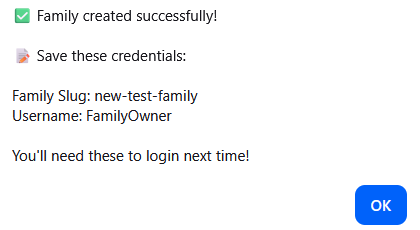
You will see this reminder pup-up. Please Remember your family-slug the whole Family will use it as Family ID
Step 2: Add an AI Provider
Without a provider configured, nobody in your family can use chat or image generation. Here's how to add one:
- From the Dashboard, click Admin Dashboard
- Navigate to the Providers tab
- Click Add Provider
- Select any of the preconfigured provider options like OpenAI from the dropdown. Or add Custom Provider.
- Paste your API key (for OpenAI it starts with
sk-...) - Write the Model ID you will use or try out like
gpt-5.4-nano - Clik ✅ Add This Model
- Click Test Connection — you should see a green ✓
- That's it ! Go to Chat page and try it out.
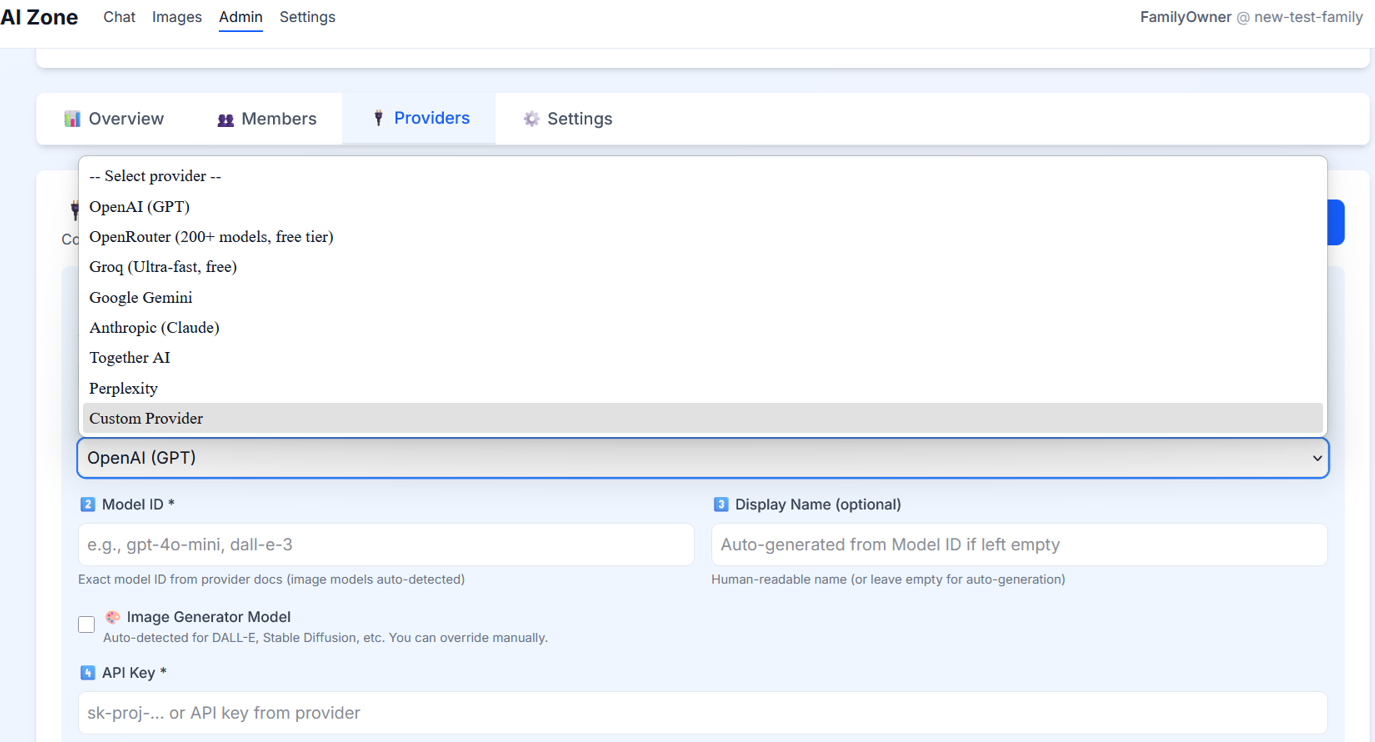
Which provider should I start with?
| Provider | Best For | Free Tier? |
|---|---|---|
| OpenAI GPT | General purpose, best quality | No (pay-per-use) |
| Google Gemini | Fast, good for families | Yes (limited) |
| Groq | Ultra-fast responses | Yes (generous) |
| OpenRouter | Access many models via one key | Yes |
We recommend starting with Groq or OpenRouter if you want to test for free, or OpenAI for the best quality.
Important: You do not need expensive models to get started. You could use cheaper but still capable models (like GPT-4o, Groq Llama, and Gemini Flash-Lite), which are great for simple tasks and child accounts.
There are many places were you can get API key for an AI Provider explore some of them in our Blog articles
Step 3: Invite Family Members
- Go to Admin Dashboard → Members
- Click Add Member
- Enter their name and choose a role:
- Adult — full access, no content filtering
- Teen — full access, mild content filtering
- Child — kid-safe mode, strict content filtering
- Enter optional e-mail or temp password.
- Share the generated invite link with them or tell them the temp password
On first login the user will be asked to setup permanent password
Each member gets their own login, conversation history, and quota tracking.
Step 4: Set Your Family Budget - Optional
Protecting your family from unexpected costs is one of Family AI Zone's core features.
- In Admin Dashboard, go to the Budget tab
- Set a Monthly Budget in USD (e.g.
$10.00) - Set Daily Token Limits per member role:
- Adults:
50,000tokens/day (recommended) - Teens:
30,000tokens/day - Children:
10,000tokens/day
- Adults:
- Click Save Settings
When any limit is reached, the system automatically switches to a free fallback model instead of blocking access.
Step 5: Start Chatting!
Now the fun part:
- Click Chat with AI from the dashboard
- Select a model from the dropdown (e.g.
GPT-5.4 mini) - Type your first message and press Enter
That's it — you're up and running! 🎉
What's Next?
Now that you're set up, explore these guides to get even more out of Family AI Zone:
- How to Generate AI Images — Create artwork with your family
- Tips & Tricks for Better AI Results — Get smarter responses
Need Help?
If anything isn't working, check these common issues:
- "No models available" → Your API key may be invalid. Go to Admin → Providers and click Test.
- "Quota exceeded" → Your daily limit was reached. The app auto-switches to a free model.
- Member can't log in → Make sure they're using the exact family slug shown in Admin → Members.
Still stuck? Contact us — we're happy to help.
Related Articles
View all →Best AI Models Comparison: How to Choose, Combine, and Optimize LLMs for Your Family
Compare the best AI models like GPT, Gemini, and BGGPT. Learn how to combine free and paid LLMs, optimize costs, and get better results with Family AI Zone.

How to Get Your OpenAI API Key
Step-by-step guide to creating an OpenAI account, generating your API key, understanding pricing, and connecting it to Family AI Zone.
Groq vs OpenAI: Which Budget AI Model Is Best for Families?
A practical comparison of Groq (free) vs modern OpenAI budget models for families — speed, quality, cost, and the best use cases for each in Family AI Zone.
Enjoying the guides? Try Family AI Zone free.
Back to Family AI Zone